Write cases
Write cases as outlines, keep their versions, and resolve edits that overlap. Use folders, tags, and search to find the cases you need.
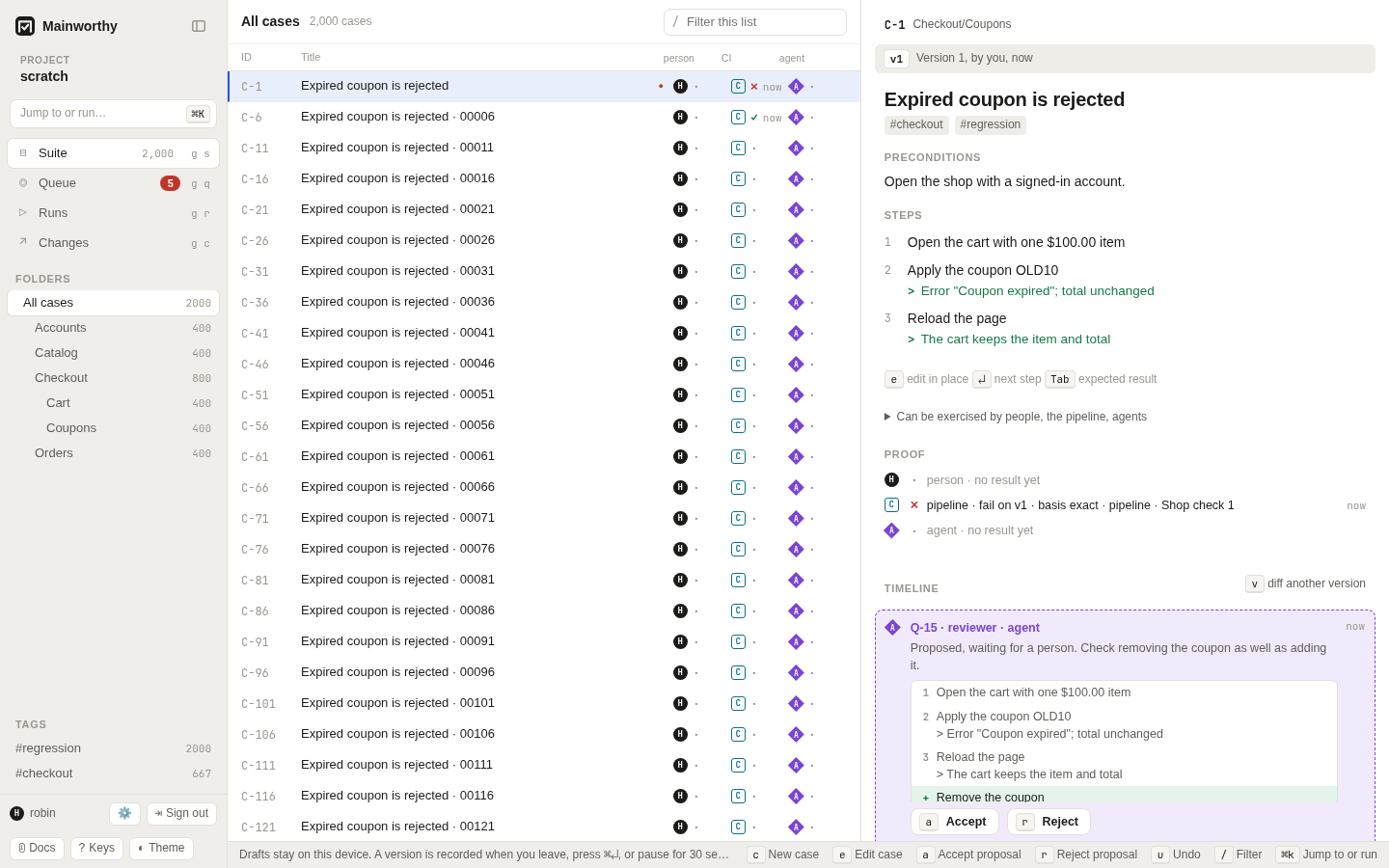
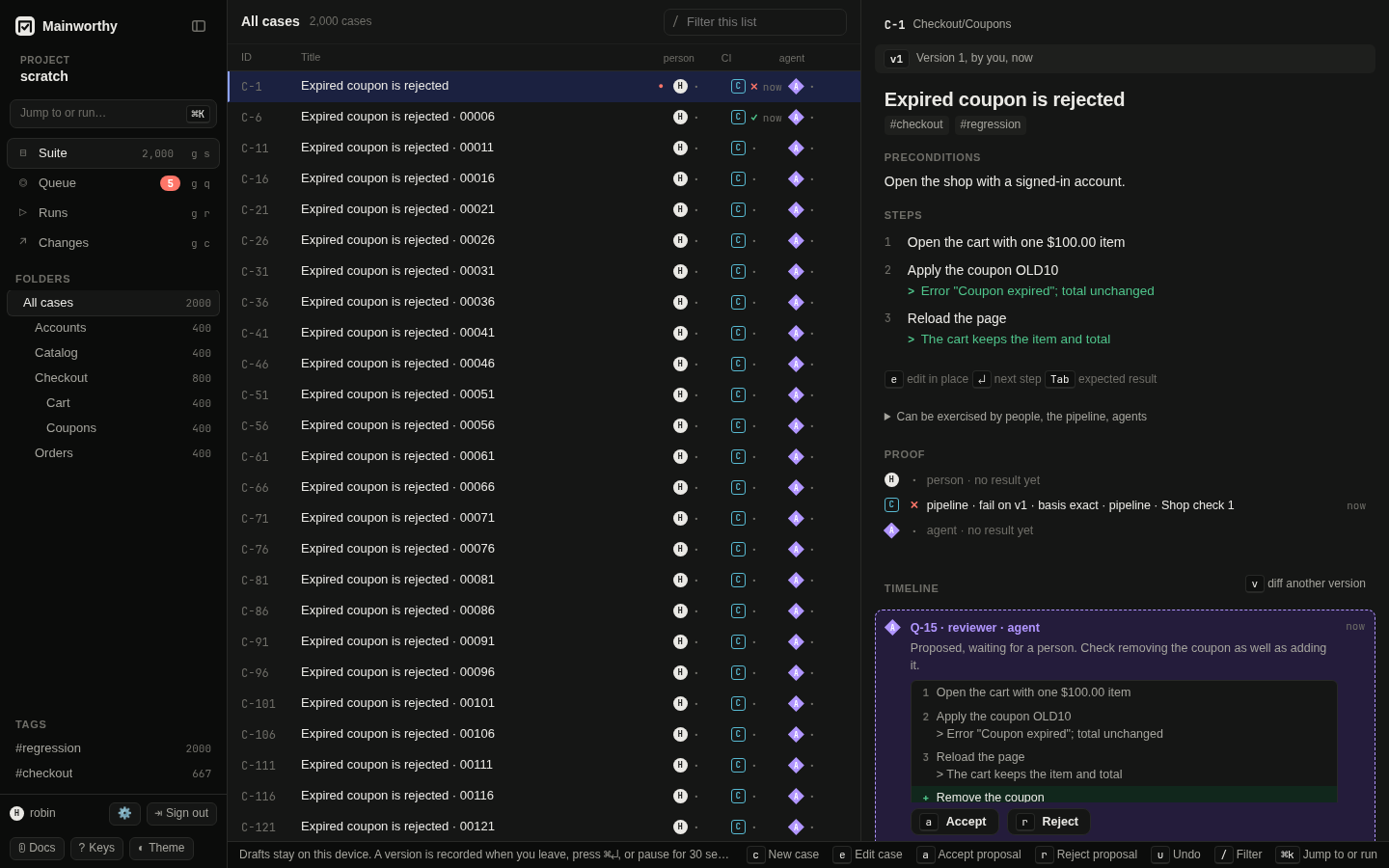
Capture a case #
- Open Suite with g s.
- Press c.
- Type the title.
- Press Enter to start the first step.
- Type an action and its expected result, separated by
>. - Press Enter for the next step.
- Press Escape to record the case and leave the editor.
Use Tab to move to the expected result field. Press Shift Enter to record this case and start another. The keyboard guide lists the remaining editor keys.
Use the outline grammar #
Put tags in the title with #tag. A space separates the tag from the title text.
Mainworthy removes recognized tags from the title and keeps them as tags.
Checkout applies a percentage coupon #checkout #regression
  Open the cart with one $100.00 item
  Apply coupon SAVE10 > Total shows $90.00
  Reload the page > Coupon is still applied
When you paste a whole outline, indent the steps or start each with a list marker.
An unmarked first line is a title only when every following line is indented or marked.
A Markdown heading such as # Coupon checkout makes the title explicit.
You can paste numbered lists, bullet lists, or checkbox lists. Mainworthy removes
recognized list markers and splits each action from its expected result.
A deeper indented line continues the previous step's expected result.
A separate line beginning with > or Expected: also continues it.
You can paste two columns from a spreadsheet, with an action and an expected result. Markdown tables work too. A header followed by a separator row is omitted. A numeric first column can supply step numbers without becoming action text.
Know what is saved #
While you type, the editor keeps a private draft on this device. A new draft has "Private, no version yet". For an existing case, others still see the recorded version named beside your draft.
A dirty draft is submitted when you leave, press Cmd Enter on macOS or Ctrl Enter elsewhere, or pause for 30 seconds. The policy then decides whether the proposal becomes current or waits for review. There is no save button.
A step is recorded once it has an action. A step with an expected result and no action yet is left out of the version and stays in your draft on this device, also after a reload. Type its action, or remove the step, and leave the editor again. A new case with neither a title nor a step that has an action is not kept when you leave it, whatever else it holds.
Emptying the action of a recorded step removes the step from the next version. Its expected result, if it has one, stays in your draft in the same way. If someone else records that step again while yours still has no action, their step replaces what your draft held of it, and an expected result of yours that differs from theirs stays as a new step.
When the page does not hear back about a save (a reload, a closed tab, a lost connection), it asks the server what became of that save the next time the draft is open. If the save made a version, the status line says "Your last save is recorded as version N", and the save is not sent again. If it is not recorded yet, it may still be on its way, so the page sends that same save again: the server records it once, however many copies of it arrive. Either way, anything you typed after it is sent when you leave. You can select text while that answer arrives. Later text stays on the version that save made. A tab closed before it hears back sends nothing more: the draft stays on this device, and the page asks when you open it again.
The draft status says "Draft, saved on this device" when device storage works. If storage is unavailable, it says "Draft, kept in this tab". Keep that tab open until a version is recorded. Drafts do not sync between devices.
Edit in one window at a time #
A draft belongs to the window that is editing it. Another window that opens the same draft shows it read-only, with "This case is being edited in another window" and "Take over here". Choose "Take over here" to move the draft to the window you are in. It opens there with its text, and with its conflict card when it has one. The first window becomes read-only. If its last save has not been confirmed, the new window asks the server what became of it. A save still on its way is retried unchanged and recorded once. Later text becomes the next version when you leave the editor. If the answer is lost, the draft keeps that save and asks again when you leave.
If two windows start typing at the same time, one can win ownership after the other has accepted text. The losing text stays in a separate copy on this device. Preserved text shows it below the ownership message, including its tags, requirement links, and any typed merge. Select and copy the text you need into the editor after taking over. The copy survives a reload or closing the window. It stays until you choose Discard preserved copy, another window's draft matches it exactly, or a later recorded version contains all its text. Ordinary takeovers carry the shared text forward and leave no preserved copy. If device storage is full, keep the window open until you have copied the text.
Moving to a case from another case never takes its draft by itself. Opening the app straight on a case, as a link or a reload does, continues a draft whose window is not answering, as it always has. When the window that holds a draft does not answer, because it closed, crashed or is busy, another window that shows the draft says "This draft is held by a window that is not answering, or has closed". Press e or choose "Take over here" to continue it in the window you are in.
Read versions and restore earlier content #
Select a case to read its version, author, proof, and timeline. A result names the case version it exercised. Editing the case does not rewrite that result.
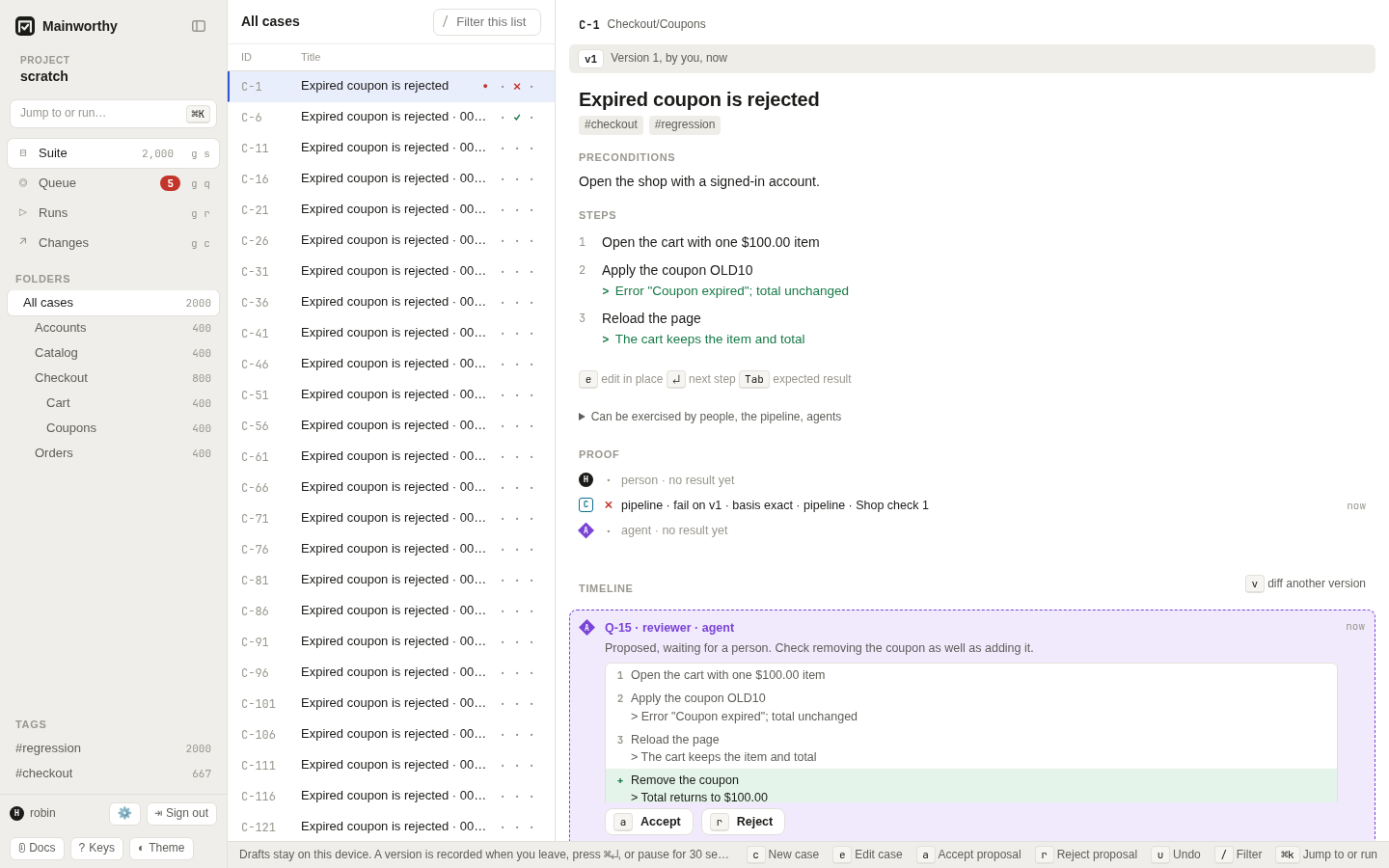
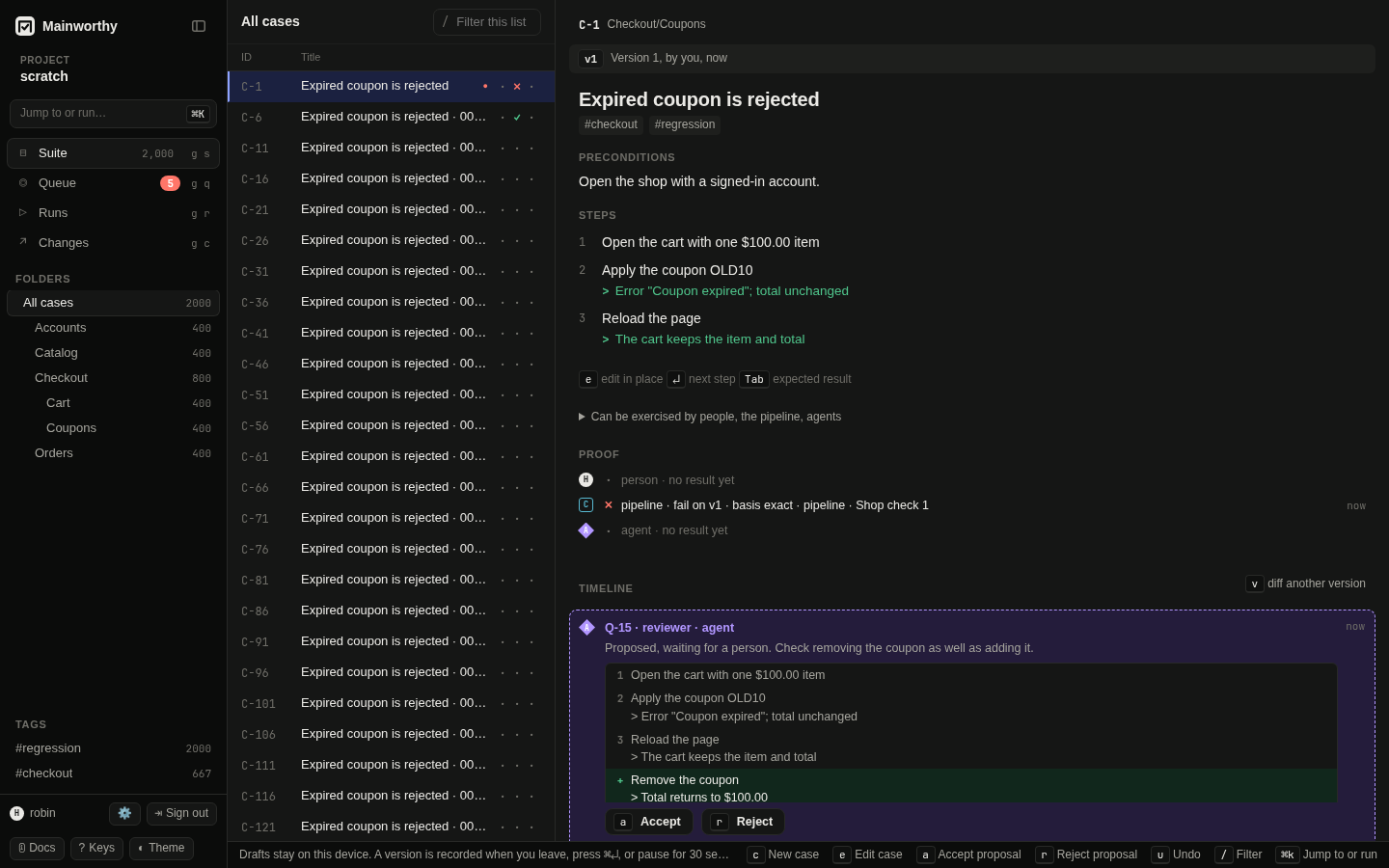
- Press v to compare the current version with the one before it.
- Select a version in the timeline to compare it with its preceding version.
- Choose "Close" to dismiss the diff.
The first version of a case has nothing before it. Asking for its diff opens nothing, and the status line at the bottom of the window says that there is no earlier version.
In Suite, u first undoes the latest placement action when one is available. Otherwise, on a recorded case with more than one version, it restores the preceding version as a new version. With a timeline version focused, it restores that version's predecessor. The API can request a specific version to restore. See the API guide for that operation.
Restoring creates history. It never deletes or rewrites the earlier versions. The web diff compares adjacent versions, rather than offering two arbitrary version selectors.
Organize the suite #
- Press n f to create a folder.
- Type its name.
- Press Enter.
Creating a folder while inside another folder places it below that folder. Select a folder in the sidebar to see its cases.
Press x on each case you want to select for a bulk action. With no selection, the action uses the current case. Press m to choose a destination folder. Press t to add a tag, then enter the tag name. Press # to archive the selected cases. Press u to record the inverse of the latest placement action.
Moves, tag changes, and archiving appear in history without creating a new body version. Archived cases leave the active suite. Their recorded history remains available. Use the API to return an archived case to active state.
Press / to focus "Filter cases". Type words to filter the current list. Use the sidebar's tags to narrow the suite by tag.
Resolve simultaneous edits #
Edits to different fields can merge without a conflict. If two edits change the same field differently, Mainworthy keeps both sides and shows "Both edits are kept". The current version stays current while you resolve the conflict.
- Read "Your draft" and "Current version" in the conflict card.
- Choose a side for each field, or type the merged text.
- Choose "Resolve conflict".
"Use all my changes" and "Keep current version" fill the merged body from one side. Resolving submits a new proposal. It still follows the policy for ordinary edits. If someone changes the case again meanwhile, the new edit merges or opens another conflict.
The card stays until the page has read the case as the server recorded it, in a second tab of yours as well.
That is your merge or a later version. A merge that waits for approval under a stricter policy has not changed the case yet.
If the read fails, the card stays and the page says so: choose "Resolve conflict" again, or "Read the case again" in a second tab.
If you leave the case in that second tab before it is read, e reads it first when you come back,
and so does a click on a field or a change to a property. A property you change before that read is not
kept: change it again once the case is shown as recorded. Until that read, the case is shown as that tab
last read it.
Review under a stricter policy #
Under loose, ordinary case proposals take effect at once.
Under standard, an agent's edit waits for a person. A person's ordinary edit still takes effect at once.
Under strict, ordinary edits wait for a person with a reason, including edits by people.
The case timeline shows the proposal and its diff. An authorized person can use a to accept it or r to reject it. Conflicts and policy changes have separate rules. See policy.
Write cases from the command line #
$ mainworthy new coupon.txt
$ mainworthy get C-1 --md > coupon.md
$ mainworthy fmt coupon.md
new reads an outline or canonical case Markdown. It also accepts standard input.
get --md prints the stored case as canonical Markdown.
fmt parses canonical Markdown and prints its standard form without changing the server.
It needs no running instance. Parse errors name the source line.
See the CLI guide for command forms and flags.