Planned runs
Choose cases for a run, record results against their pinned versions, and close with a verdict. Accept CI evidence so you do not repeat work already shown.
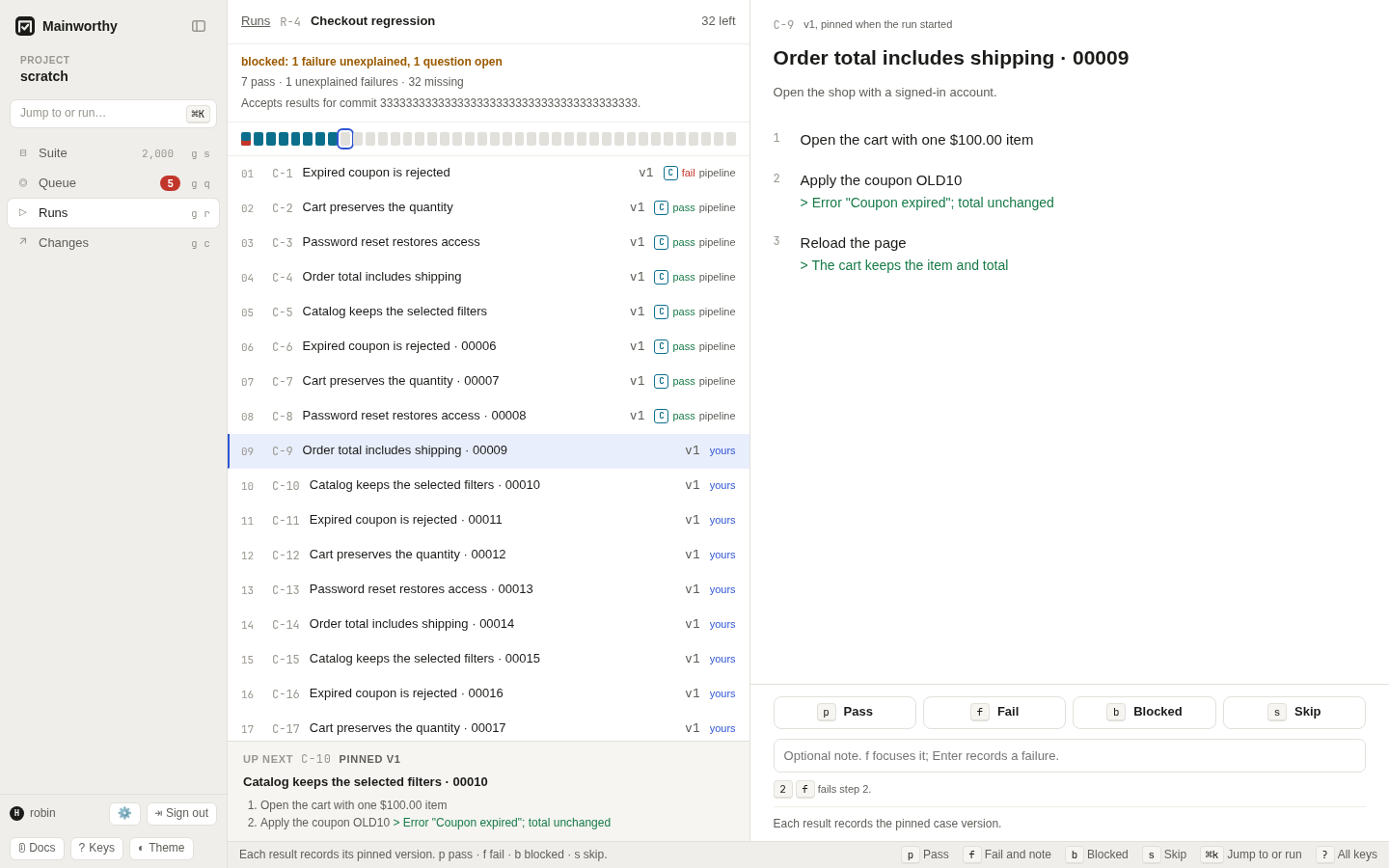
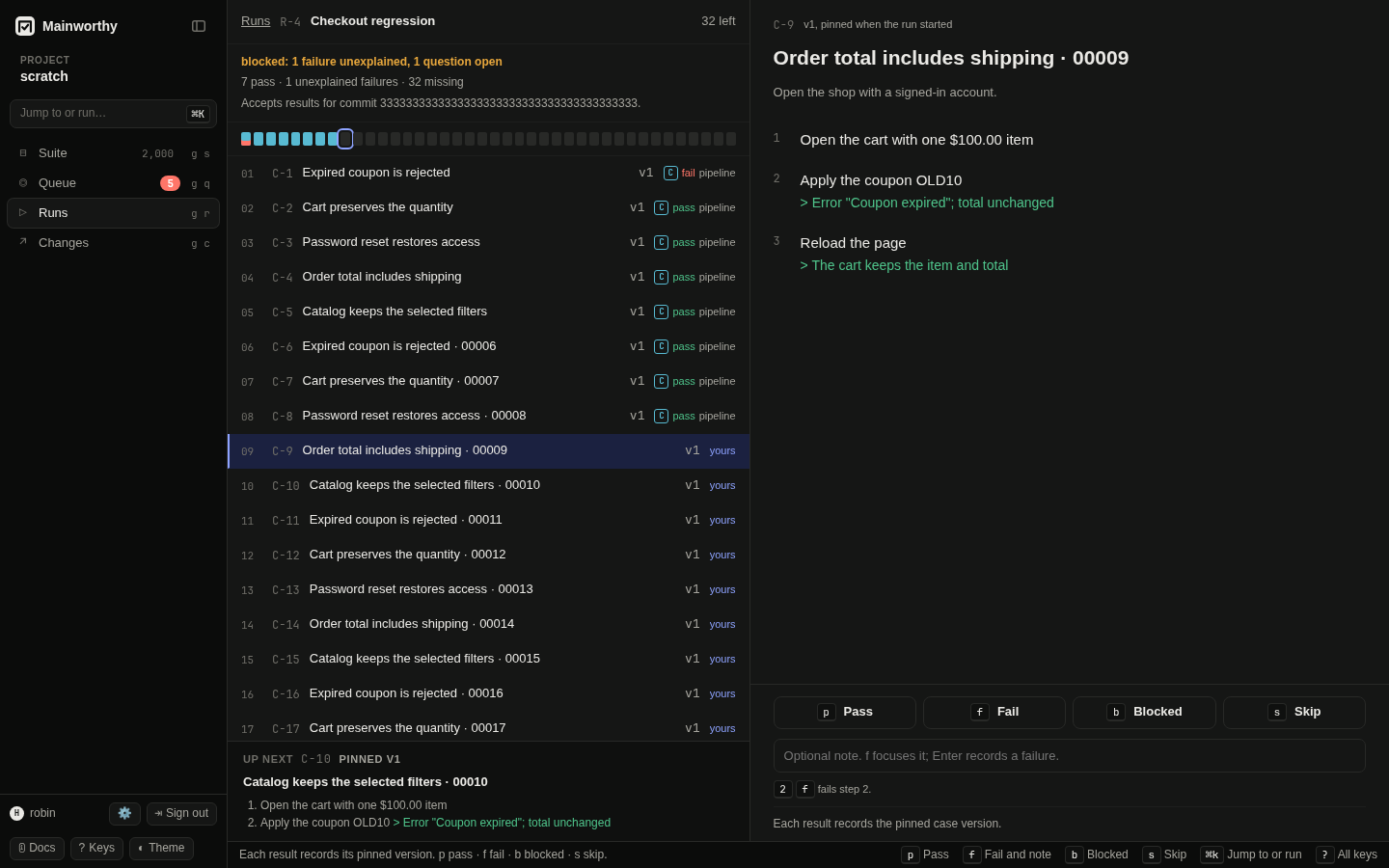
Plan a run in the web app #
- Press g r to open Runs.
- Press n.
- Enter a "Run name".
- Choose "All active cases", "By folder", "By tag", or "By search" under "Cases".
- Supply the folder, tag, or search text when needed.
- Choose which results the run accepts.
- Choose "Plan run".
The planner shows the number of matching cases. "Count only results recorded in this run" accepts work explicitly reported to the run. "Accept results for a commit" also accepts qualifying results already reported for that commit and results that arrive later. Enter the tested commit's hash.
A run counts one commit. An abbreviated hash is resolved against known commits at planning time. If none is known yet, use the full hash your pipeline will report. An ambiguous abbreviation is refused.
Understand what each slot requests #
Each selected case gets a slot pinned to its current version when you plan the run. Editing, moving, or archiving the case later does not change that slot's version. Read the pinned document in the run, rather than the latest document in Suite.
By default, a run asks for a person or an automated test, with one passing actor.
It accepts exact or assumed evidence under loose and standard.
Under strict, the default requires exact evidence.
A run can ask for other methods or two distinct passing actors through the CLI or API.
A person's result counts when the pinned case admits people. An automated test counts when its link or annotation identifies the case and the result meets the run's version rule. An agent counts only when the run asks for agents and the pinned case admits them. An agent's review is not a runtime pass. See agents.
The web planner uses these policy defaults. It does not yet offer controls for custom method requirements, required jobs, or actor assignments. Use the CLI or the API for those settings.
Record results by hand #
- Select an unfilled slot.
- Exercise the pinned case's steps.
- Press the key for the outcome.
p records "Pass". b records "Blocked". s records "Skip". These keys move you to the next missing slot. f focuses "Result note". Enter the failure details, then press Enter to record "Fail" and move on.
While the note has the focus, the outcome keys type letters and Enter records "Fail". To record another outcome with a note, type the note, press Esc to leave the field, then press the outcome key.
Type a step number before f to mark the failed step. Use j and k to move between slots. The run keeps unfinished notes on this device until the result is recorded. See the keyboard guide for all run keys.
Blocked and skipped results record that the case was not proven. They do not satisfy
a slot, and a run with missing proof stays pending.
A failure opens a question. Answer it in Queue.
Press u to correct the last result while the run remains open. If there was no previous result, the correction is a skip. Both results stay recorded. Once the run closes, reopen it before recording or correcting results.
Let CI fill the run #
A run that accepts a commit can use linked test results for that same commit. Evidence already recorded fills qualifying slots when you plan the run. Later reports fill qualifying slots while the run is open. The result must meet the slot's pinned version, method, and basis requirements.
An assumed result cannot fill a slot that requires an exact basis. A pass on another case version does not count just because the title is unchanged. See report results.
The web app leaves slots filled by another producer for that producer's evidence. Move to an unfilled slot to record your own work. Use the reporting operation if your workflow needs several producers on one slot.
Require CI jobs #
Add named jobs when the run must receive reports from all parts of a pipeline. Each required job needs an applied pipeline report that ran something. A report made only of skipped or blocked results does not meet the requirement. An agent's report under the same job name does not meet it either. A run that counts only its own results cannot require CI jobs.
Use this CLI form for one case, one commit, and a required tests job:
$ mainworthy plan --json '{"name":"Checkout CI","select":{"cases":["C-1"]},"accepts":{"commit":"1111111111111111111111111111111111111111"},"require":[{"id":"exercise","kind":"exercise","methods":["human","auto"],"minActors":1,"basis":"exact"},{"id":"jobs","kind":"jobs","jobs":["tests"]}]}'
Match the job name to the report's detected job or explicit --job value.
A required job is separate from the evidence each case slot needs.
Resolve a disputed slot #
A counted pass and fail from different producers make a slot disputed. A later write from another producer does not silently replace the disagreement. Read the evidence in Queue and choose the appropriate failure answer. "The failure was a mistake" lets the named passing evidence stand.
Under standard and strict, a person who produced the disputed evidence cannot
settle that dispute. See policy.
The same retry rules used by commit gates apply to results within each producer's
job and target. See report results.
Close and reopen a run #
When a planned run passes, Mainworthy raises a sign-off question.
Under loose and standard, a recorded rule normally approves and closes it.
Under strict, an authorized person approves with a reason in Queue.
Rejecting sign-off leaves the run open. You cannot approve a run that no longer passes.
A closed run takes no more results. It keeps the evidence it closed on. To reopen it, find its sign-off in Queue's "Settled" view and withdraw that approval. The run becomes live again and uses qualifying evidence recorded since it closed. Newer decisions and the current policy still control who may withdraw it.
Plan a run from the command line #
$ mainworthy plan --json '{"name":"Checkout smoke","select":{"tags":["checkout"]}}'
The reply names the run, its slot count, and how many slots evidence already filled.
Use mainworthy gate --run R-2 to read its verdict.
See the CLI guide for selection, methods, assignments, and other plan inputs.