Keyboard
Every key of the web UI, by screen. In the app, ? lists the keys of the screen you are on, and the bar at the bottom shows the ones you are most likely to want next.
How the keys work #
- Two keys in a row, such as g q, are pressed one after the other, not together. You have a little under a second for the second key.
- ⌘ is Command on macOS and Ctrl everywhere else.
- While you type in a field, only ⌘ combinations, Esc and the keys of the case editor work. Esc leaves the case editor, the filter and a run's note. A field in Settings keeps the focus: click outside it first.
- A list you choose from, such as a case's automation, a token's producer or a run's cases, opens when you press ↓, ↑, Home, End, Page Up, Page Down or ↵ on it, and changes nothing until you choose from it: with the arrow keys and ↵, or with the mouse. The choice is one change, and the keys go back to the screen with it. Typing a letter picks the option that starts with it, and that is a choice too. How an open list closes is the browser's. Chromium on Linux, where this was checked, takes the highlighted option when you close the list with Esc, Tab or a click outside it, so move back to the option you had if you do not want a change. If the list closes with Esc or Tab and no change, the list keeps the keys until you press Esc again. Where the browser cannot open a list from a key, an arrow changes the choice by one, as it does in any web page.
- While the palette or the list of keys is open, only Esc and ⌘ K work. In the palette, ↑ and ↓ choose a row and ↵ runs it; Tab moves from the field to the rows, and ↵ runs the row that has the focus.
- ↵ and Space press a button that you reached with Tab, and ↵ follows a link you reached that way. Everywhere else they are the screen's keys. That includes a button you clicked with the mouse, until the focus moves on, and the rows of a screen's list.
On a phone #
A phone, or a tablet held upright, is worked with a finger, so the app is laid out for one there. It shows one pane at a time.
- Menu (☰) opens the sidebar: the screens, the project, the folders and tags of the suite, the theme and Sign out.
- A screen opens on its list. Tap a row to read it, and Back to return to the list. A link to one case, question, run or change opens on that thing.
- Actions opens the palette. It lists what the keys of the screen do, but not ⌘ K (you are in it) or ?, the list of keys (a phone has none to list; with a keyboard attached ? still opens it). Tap one to run it. Tap the field at the top to search for a case or to jump to a ref.
- While a list is shown, Actions offers what belongs to the list, such as New case, New folder, Filter and Plan run. Open a row for the actions on it, such as Edit case, an answer or Record version. Nothing is decided about a case or a question you have not opened.
- With a keyboard attached, the keys follow the same rule. While a list is shown, the keys of the list work: c, /, n in Runs, n f in the Suite, and the keys under Everywhere but [. Once a row is open, every key of the screen works. n f opens the sidebar with the form for the folder's name, since the form is there. Tab into the detail shows it. While the sidebar is open, only the keys of the list work. While the palette is open, only Esc and ⌘ K do, as on the desktop, and the palette has its own ↑ ↓ to move and ↵ to run the choice. Its field does not take the focus on a phone, so the keyboard on the screen stays closed: tap the field to type in it, since a letter typed before that goes nowhere.
- A button does what it does on a desktop: an answer in the Queue, Pass, Fail, Blocked and Skip in a run, Accept and Reject on a proposal.
Four things need a keyboard and have another way without one:
| On a desktop | On a phone |
|---|---|
| A digit marks the step a run failed at | Write the step in the note |
| Drag a case onto a folder | Actions, then Move selected |
| Esc leaves the case editor | Back, or Actions, then Seal and leave editor. Both record what you typed. A conflict that waits for your answer stays as it is. |
| Esc closes the form for a tag, a new folder's name, or the reason the policy asks for | Actions, then Cancel tag, Cancel new folder, or Cancel. Nothing is recorded. |
The layout follows the pointer, not the width of the window. A browser worked with a mouse keeps the desktop layout however narrow its window is. So does a tablet whose window is wider than 900 px and taller than 500 px, as most are on their side.
Everywhere #
| Key | What it does |
|---|---|
| g s | Go to Suite |
| g q | Go to Queue |
| g r | Go to Runs |
| g c | Go to Changes |
| g , | Go to Settings |
| g p | Switch project. Lists the projects you can read. Type part of a name or a key and press ↵. The screen you are on stays open. The key is there when you can read more than one project. |
| g d | Docs for this screen. Opens the page about the screen you are on, in a new tab. |
| g x | Sign out. Ends this browser's session and shows the sign-in page. It is there when you signed in, and not in local mode, where the owner of the machine needs no sign-in. |
| ⌘ K | Jump to or run. Opens the palette: type a ref such as C-12, words from a case title, the name of an action, or docs and a word. |
| ? | All keys of the current screen |
| [ | Collapse / expand sidebar |
| Esc | Close palette / keys |
Suite and case #
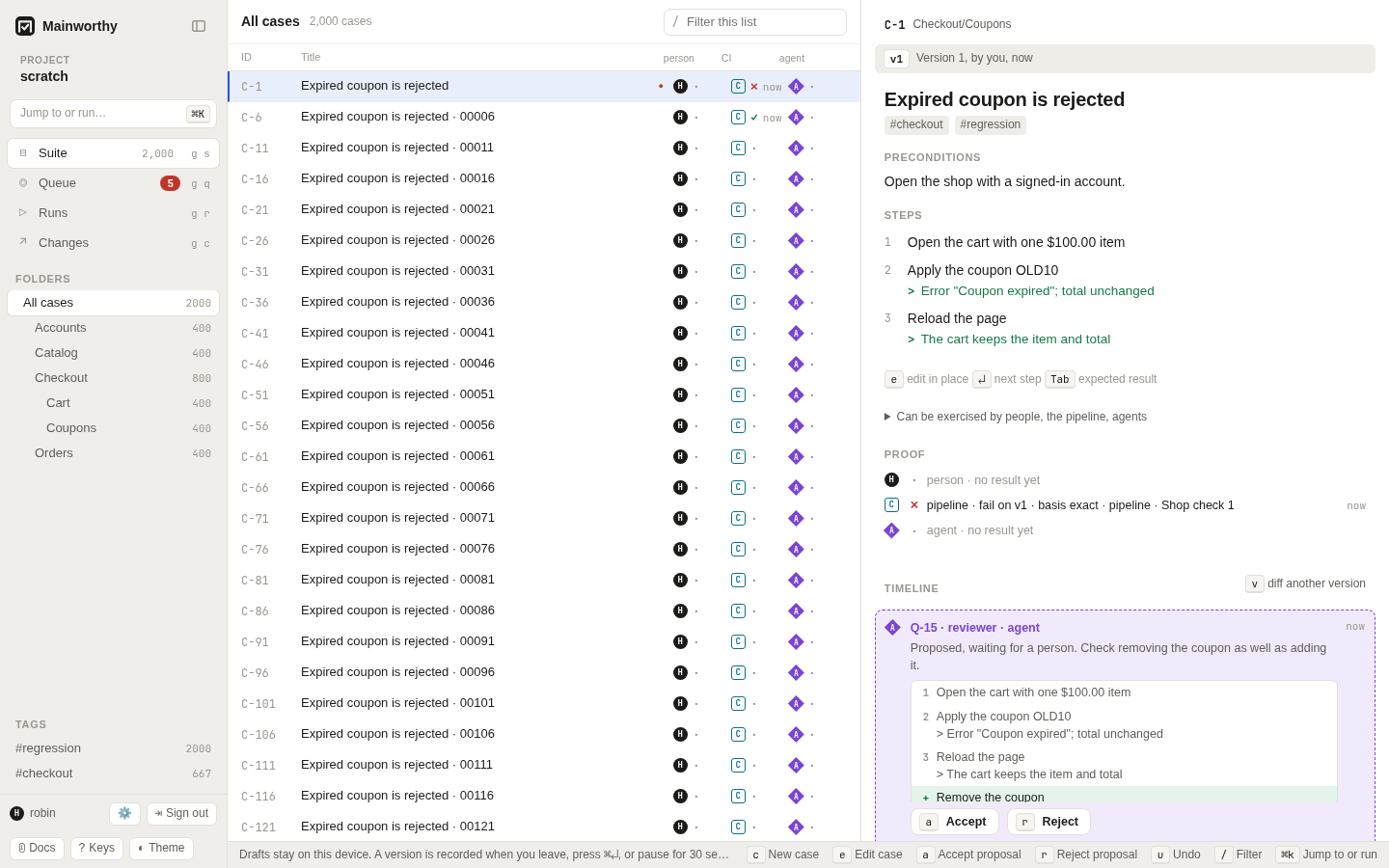
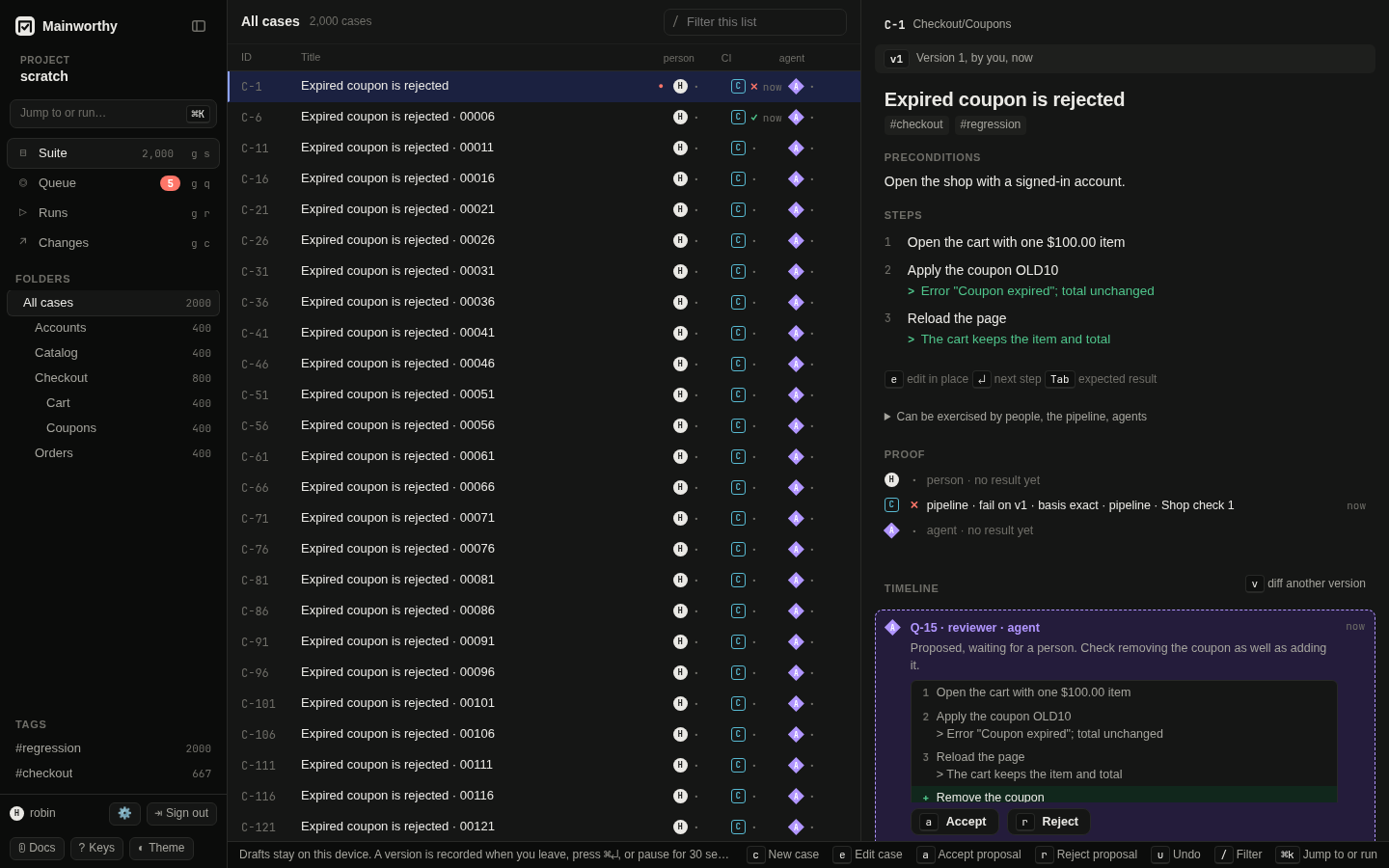
| Key | What it does |
|---|---|
| c | New case |
| e or ↵ | Edit case |
| j or ↓ | Next case |
| k or ↑ | Previous case |
| / | Filter the list |
| x | Select case, for the three keys below. With none selected they act on the current case. |
| m | Move selected to a folder |
| t | Tag selected |
| # | Archive selected |
| u | Undo the last move, tag or archive. With nothing to undo, restores the version before. |
| Space | Peek timeline |
| ] | Next folder |
| Alt [ | Previous folder |
| n f | New folder |
| z | Widen case pane |
| v | Version diff |
| a | Accept proposal |
| r | Reject proposal |
While you write a case #
| Key | What it does |
|---|---|
| ↵ | First step, when you are in the title |
| ↵ | Next step, when you are in a step |
| Tab | Expected result of the step you are on |
| Shift ↵ | Next new case: records this one and starts another |
| ⌘ ↵ | Record version now |
| Esc | Seal and leave editor: records the version and leaves |
Write cases explains the outline you type and when a version is recorded.
Queue #
| Key | What it does |
|---|---|
| j or ↓ | Next question |
| k or ↑ | Previous question |
| Space | All evidence of the question, or back to the short view |
| x | Select question, to answer several of one kind at once |
| * | Select all of this kind: every listed question of the selection's kind, or clears the selection when they are all selected |
| Esc | Clear selection |
| ↵ | Take advice: gives the answer an agent advised |
| u | Undo answer |
The answer keys depend on the kind of question. The queue shows the ones that apply to the question you are on, each with what it does.
| Key | Answer | On a question about |
|---|---|---|
| a | Accept | a proposed edit |
| r | Reject | a proposed edit |
| l | Link to a case | a test with no case |
| c | Create cases | a test with no case |
| t | Track without a case | a test with no case |
| d | Defect in the product | a failed result |
| t | The test is wrong | a failed result |
| e | Expected: behaviour changed | a failed result |
| f | Flaky | a failed result |
| i | Infrastructure | a failed result |
| n | Already failing on base | a failed result |
| m | The failure was a mistake | a failed result |
| a | Accept | a finding from a review |
| r | Reject | a finding from a review |
| d | Duplicate | a finding from a review |
| z | Defer | a finding from a review |
| a | Approve | closing a run |
| r | Reject | closing a run |
Decide in the queue explains each answer.
Runs #
In the list of runs:
| Key | What it does |
|---|---|
| n | Plan run |
| j | Next run |
| k | Previous run |
| ↵ | Open cockpit: the run with its slots |
In a run:
| Key | What it does |
|---|---|
| p | Pass |
| f | Fail and note: type what went wrong, then ↵ |
| b | Blocked |
| s | Skip |
| u | Correct last result |
| j or ↓ | Next slot |
| k or ↑ | Previous slot |
| 0 1 2 3 4 5 6 7 8 9 | Mark step digit |
| Esc or ⌫ | Clear step mark |
| ↵ | Record failure, while you type its note |
| Esc | Cancel note |
To say which step failed, type its number and then f. Planned runs explains slots and what fills them.
Changes #
| Key | What it does |
|---|---|
| j | Next change |
| k | Previous change |
| ↵ | Open blocking question in the queue |
Settings #
| Key | What it does |
|---|---|
| j | Next setting |
| k | Previous setting |
| n | New token, in the Tokens section |
| n | New project, in the Projects section |
| n | New invitation, in the People section: the caret goes to the person's name |
| n | New password, in the Your sign-in section |
Settings has no key that ends a session or removes a passkey: Tab reaches "End" and "Remove".
The sign-in page and an invitation #
These two pages open before you are signed in, so the keys above do not work on them. They are plain forms.
| Key | What it does |
|---|---|
| Tab | Next field or button, in the order they are on the page |
| ↵ | Sends the form the caret is in: sign in, or accept the invitation |
| Space | Ticks "Make a passkey on this device" on an invitation, when the caret is on it |
The caret starts in the name on the sign-in page and in the password on an invitation. When the browser is signed in as somebody else, an invitation first asks whether to sign them out, and the caret starts on "Continue". A button that was pressed keeps the keyboard focus while its request runs and after a refusal, so the next ↵ tries again.